
My Keyboard Driven VScode Extensions and Custom Shortcuts
I never thought I’d use VS Code the way I’m using it now, and I think you should try my extensions and shortcuts to make up your mind.
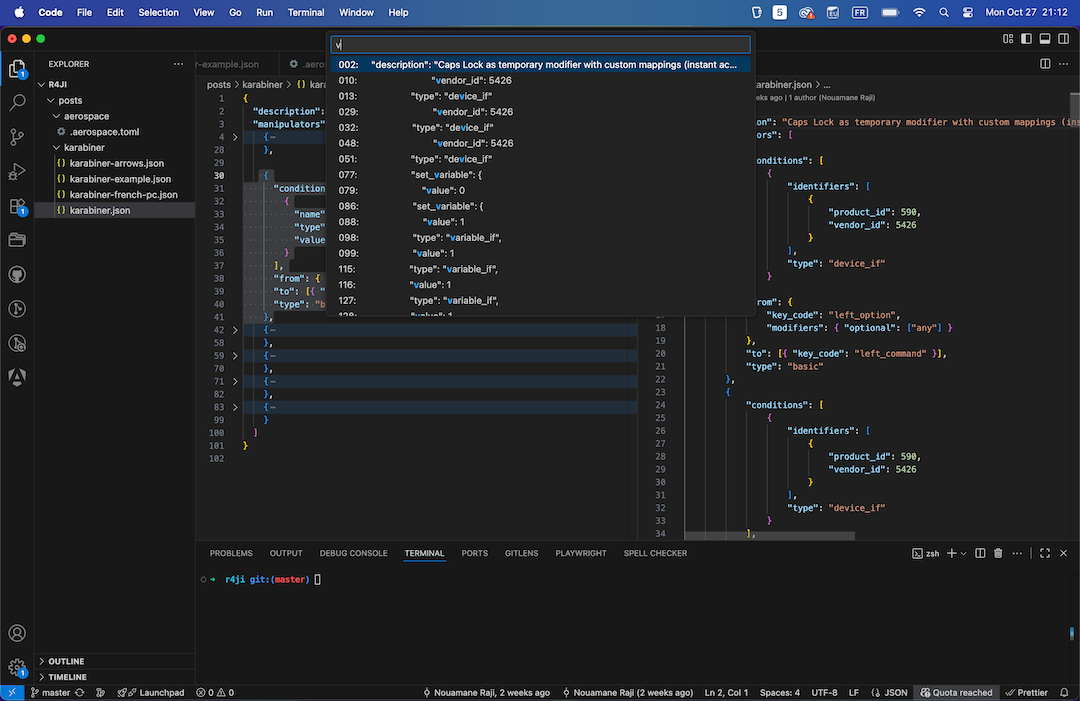
First let me say, I’ve been using VS Code for years, and before it I had the chance to use many, from Eclipse, NetBeans, Notepad++, Sublime Text, I think I’ve even used Notepad… anyway…
Recently a fellow developer told me he’s using NVIM and that it is more powerful than any other code editor out there, so I spent a week learning it… yes, the whole HJKL, o, i, vi{, dim… keyboard die-hard will understand what I’m talking about.
The first time I was convinced that this is it, that there’s a winner… Until I had a second talk with another friend, it was kind of a heated argument; he never used NVIM, wasn’t clearly aware of the whole thing, but he got some points.
So I decided to start looking for all the new things I discovered in NVIM but this time in VScode and oh boy… I like VScode even more than before.
I will list in this article all the interesting extensions I’m using as well as the custom shortcuts that make my life easier.
1. Expand-Region

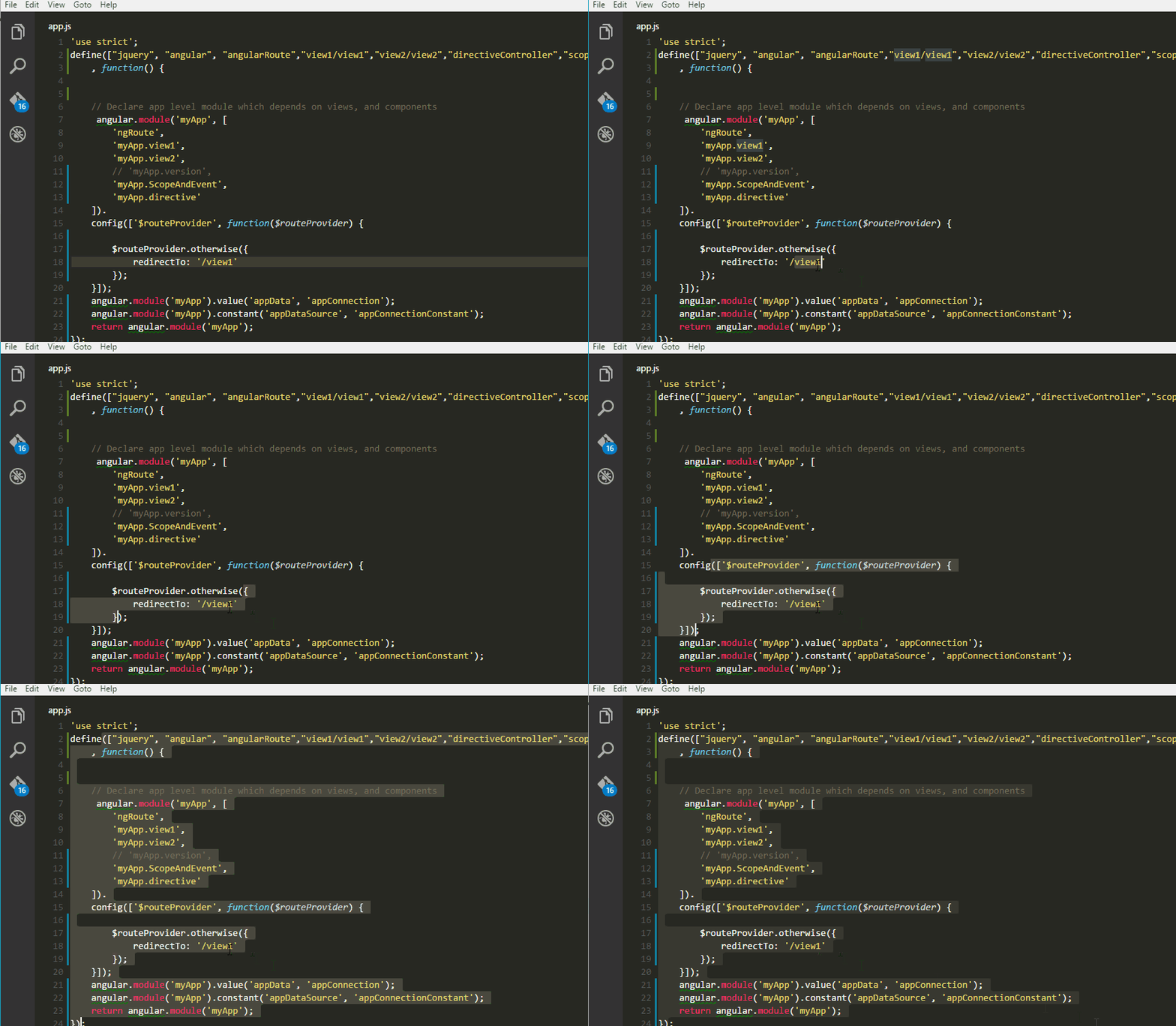
expand_region: Cmd+WUndo Expand Region: Cmd+Shift+W
2. Fuzzy-Search

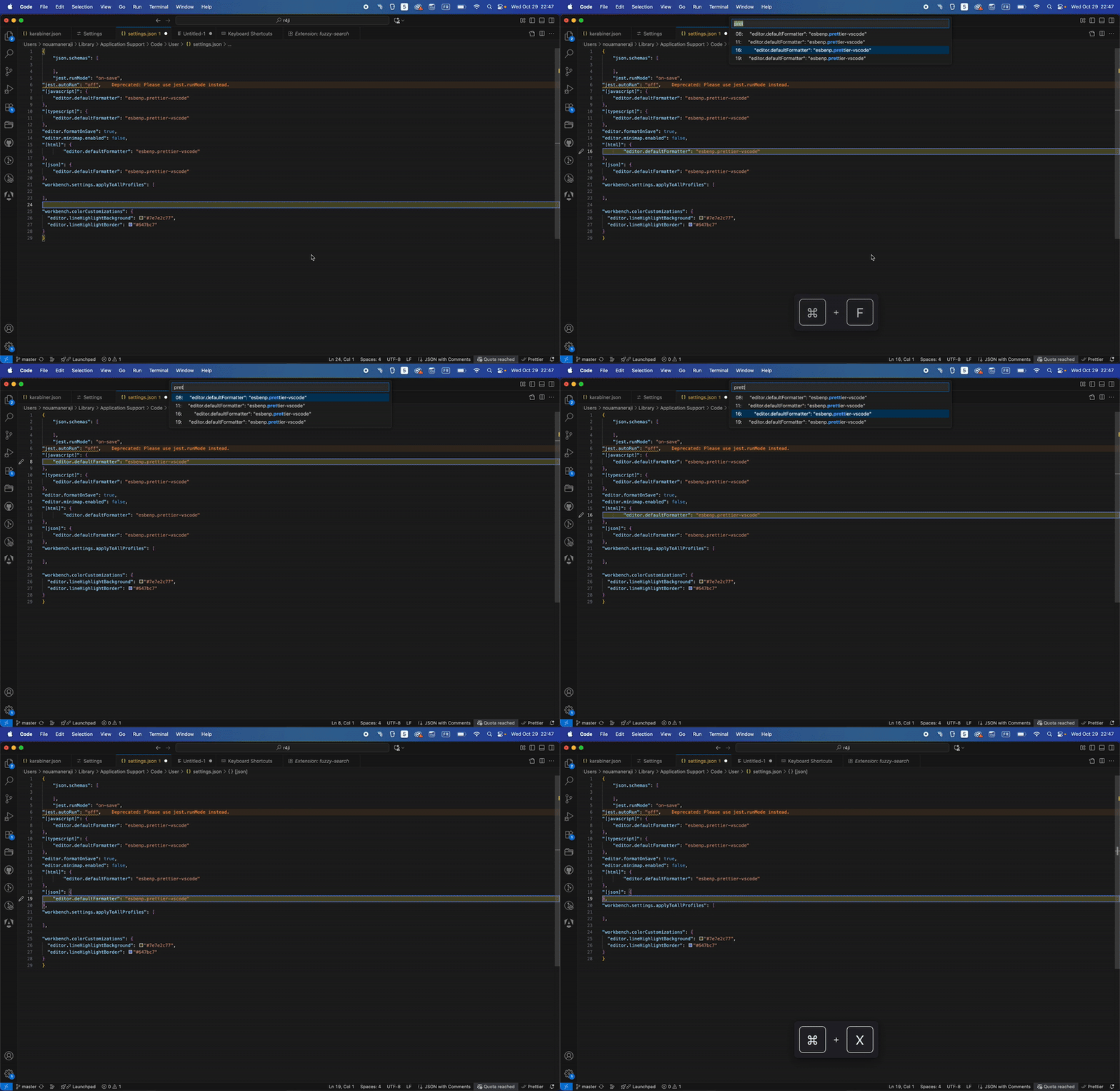
Cmd+F to search in file. With fuzzy search you get instant feedback about your search, use navigation to explore your results, and Enter to start writing in the given line.
keybindings:
fuzzySearch.activeTextEditor: Cmd+F
and if needed, add customized highlighting to your settings:
"workbench.colorCustomizations": {
"editor.lineHighlightBackground": "#7e7e2c77",
"editor.lineHighlightBorder": "#647bc7"
}
3. Oil.code

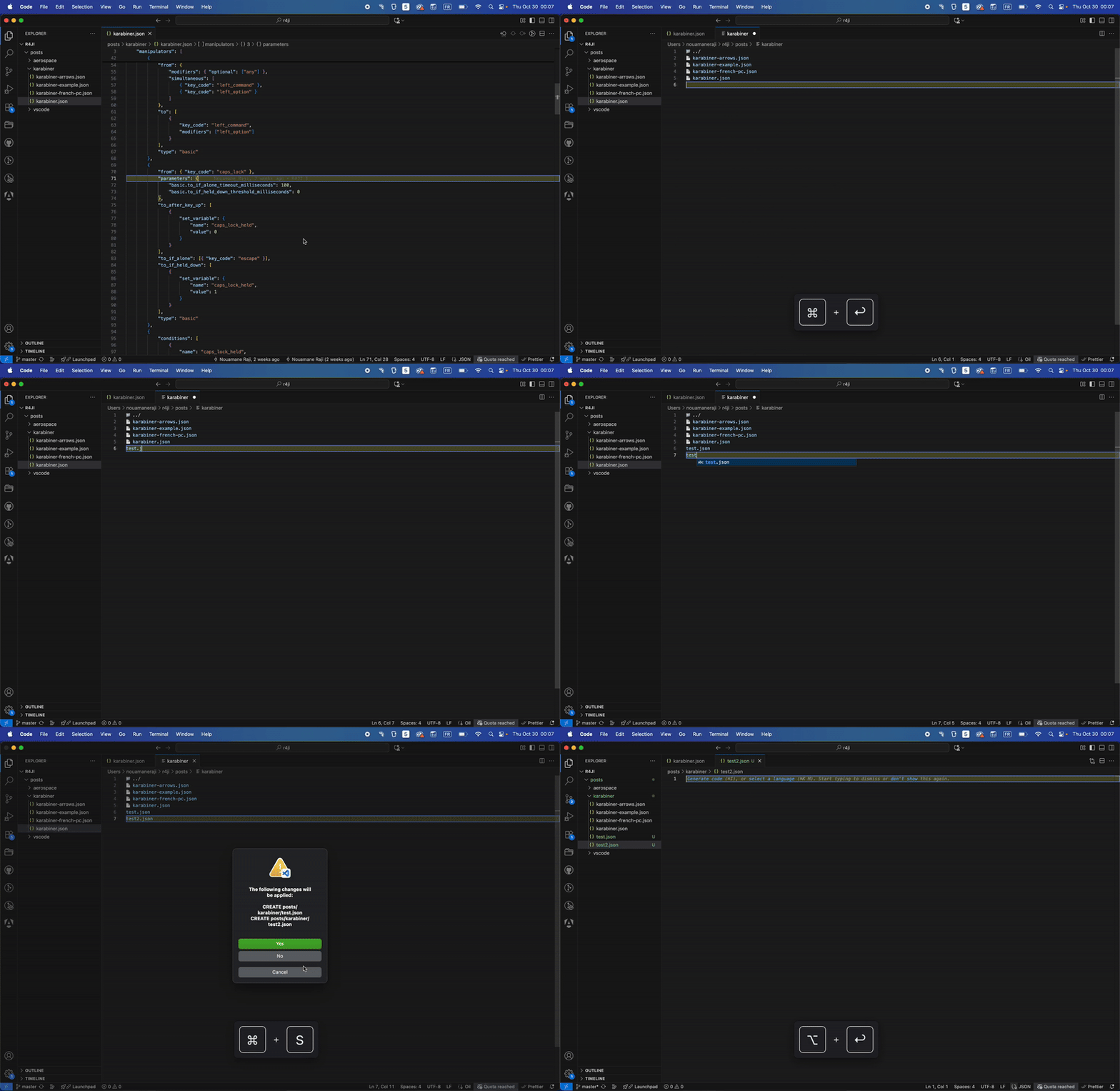
Oil lets you navigate your file system, copy, move, and rename files and directories all without leaving your file editor. It’s a nice-to-have!
keybindings:oil-code.open: Opt + f
Spoiler alert! You wouldn’t be able to navigate as easily as I do; matter of fact, you should check out my Karabiner article that will dilate your pupils even more.
4. Use Option / Alt for navigation
Opt + d means go to definition. To support multiple ways to open a definition (side-by-side, peek, vertically, etc.), I use multi-key sequences like Opt + d + v (reveal definition aside vertically). To avoid conflicts, the base command becomes Opt + d + d for the primary « go to definition » action.
Keybindings
Below are the outer navigation keybindings I use — friendly mnemonics, compact sequences, and no language-specific bindings (except the Oil helpers, which I keep):| Key Combination | Command | Description |
|---|---|---|
Opt + p |
workbench.action.pinEditor / workbench.action.unpinEditor |
(P)in or unpin the active editor tab |
Opt + c b |
workbench.action.closeActiveEditor |
(C)lose the active editor (b for buffer as in NVIM) |
Opt + r |
editor.action.goToReferences |
Go to symbol (R)eferences |
Opt + d v |
editor.action.revealDefinitionAside |
Open (D)efinition to the side (V)ertical |
Opt + d p |
editor.action.peekDefinition |
(P)eek (D)efinition inline |
Opt + d d |
editor.action.revealDefinition |
Jump to (D)efinition |
Opt + c o |
workbench.action.closeOtherEditors |
(C)lose all (O)ther open editors |
Opt + n |
workbench.action.compareEditor.nextChange |
Jump to (N)ext diff change |
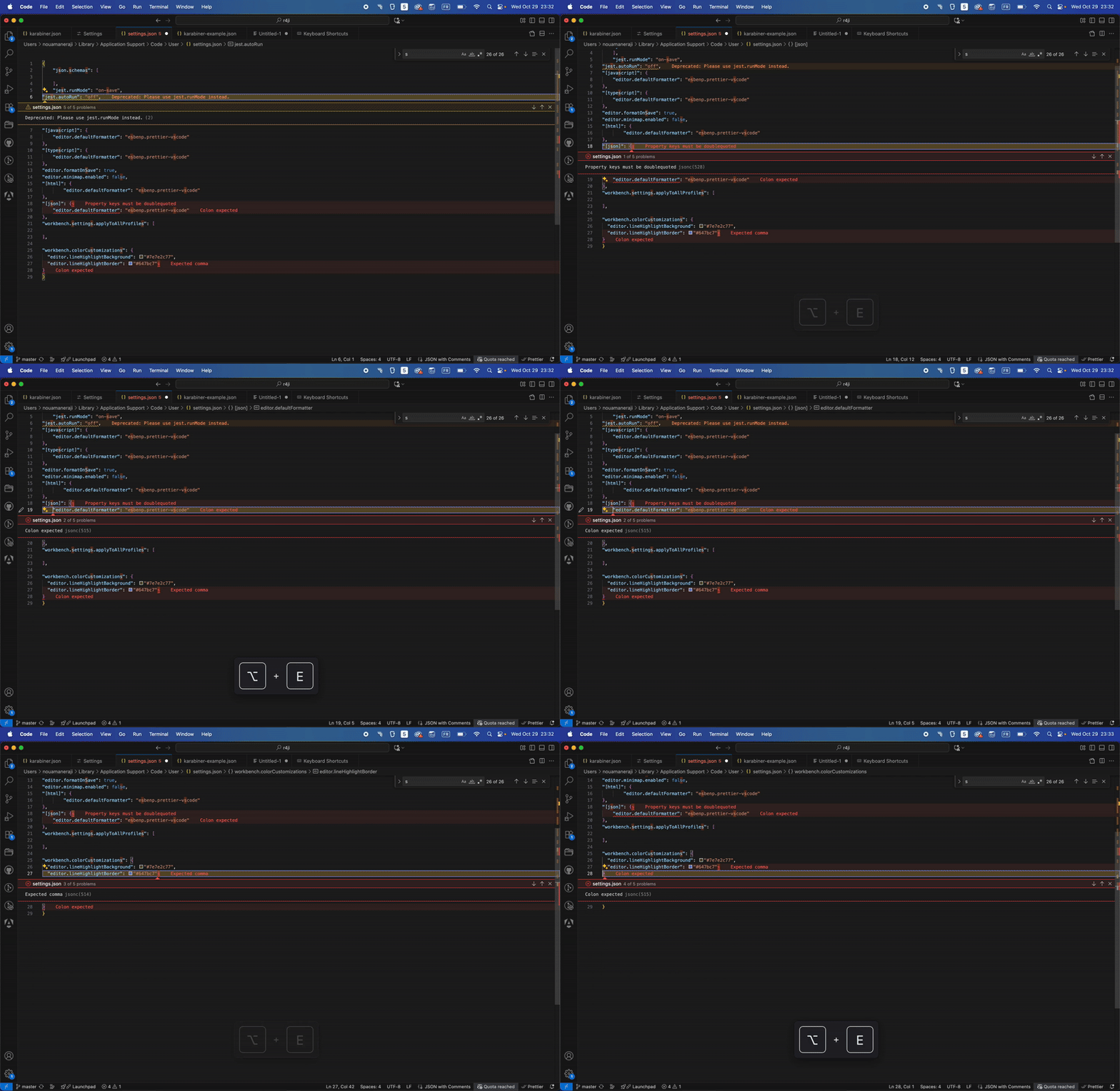
Opt + e |
editor.action.marker.next |
Jump to next problem, (E)rror, or warning |
Shift + Opt + e |
editor.action.marker.prev |
Jump to previous problem, (E)rror, or warning |
Opt + v |
oil-code.selectVertical |
Oil-code: select (V)ertical |
Opt + f |
oil-code.open |
Oil-code: open command |
Opt + e « go to next (e)rror ».
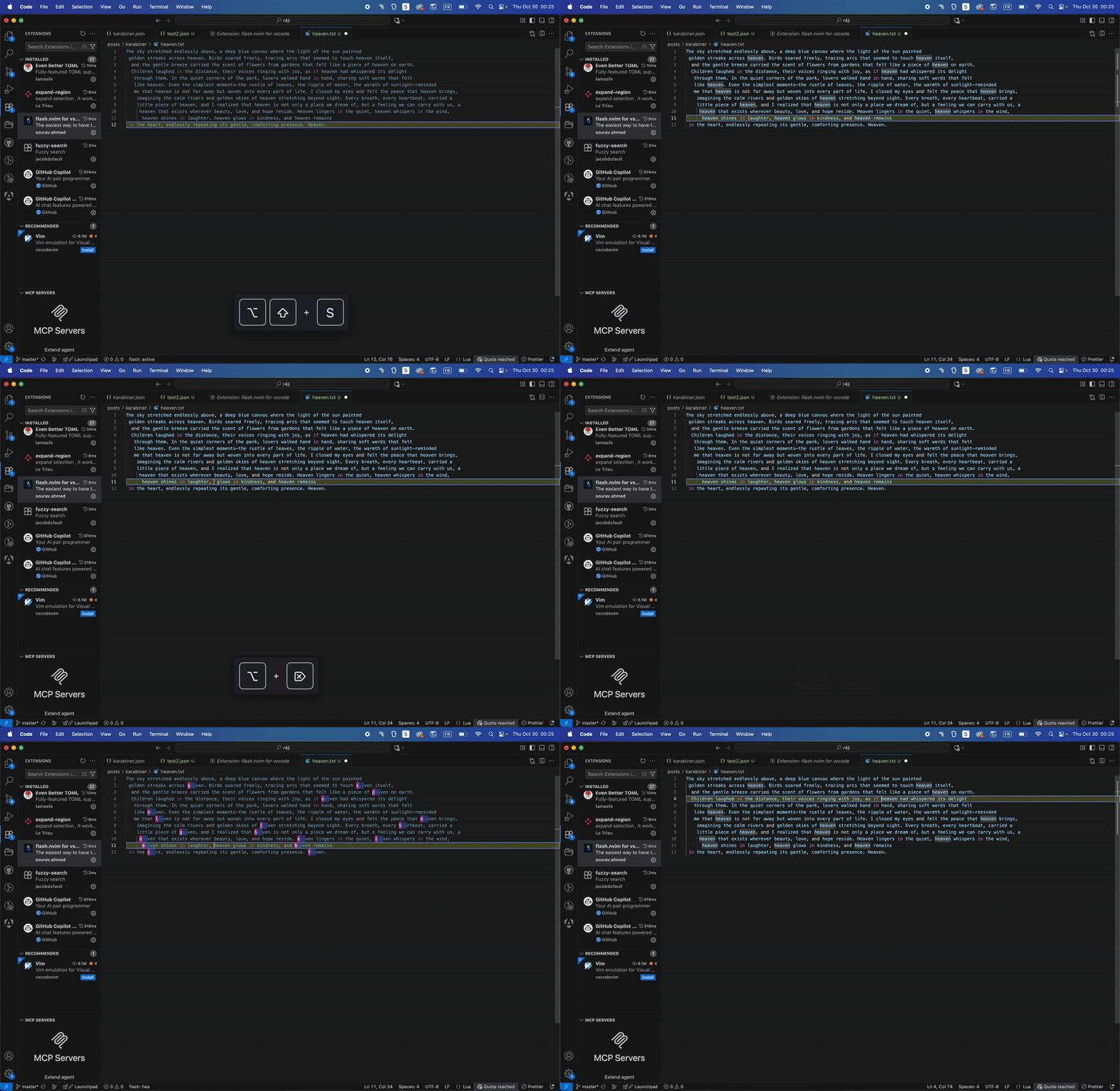
5. Flash.nvim for vscode

flash-vscode.start: Shift + Opt + s
6. Shortcut I didn't know about
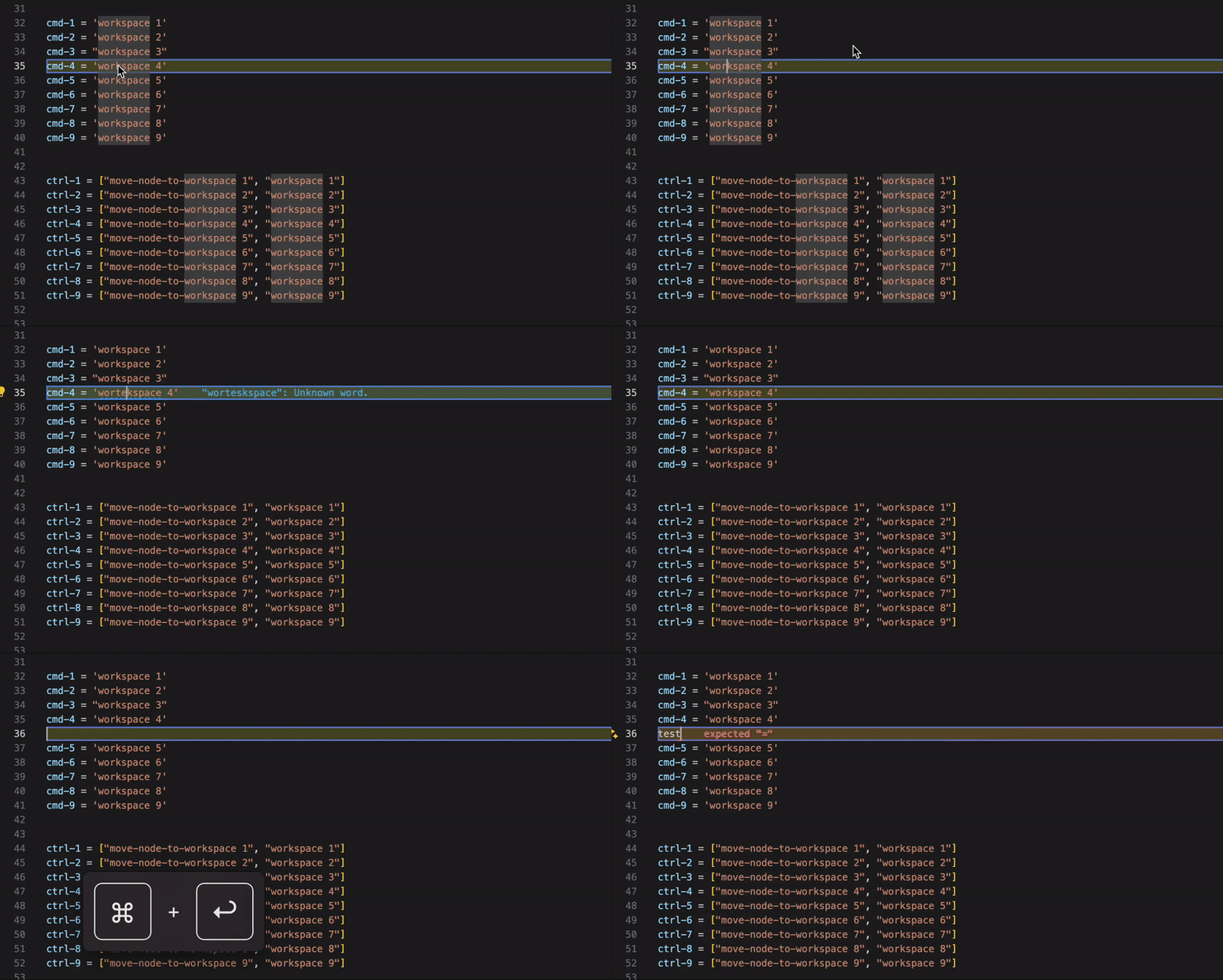
- Cmd + Enter: No matter where your cursor is, it will insert a new line and place your cursor there
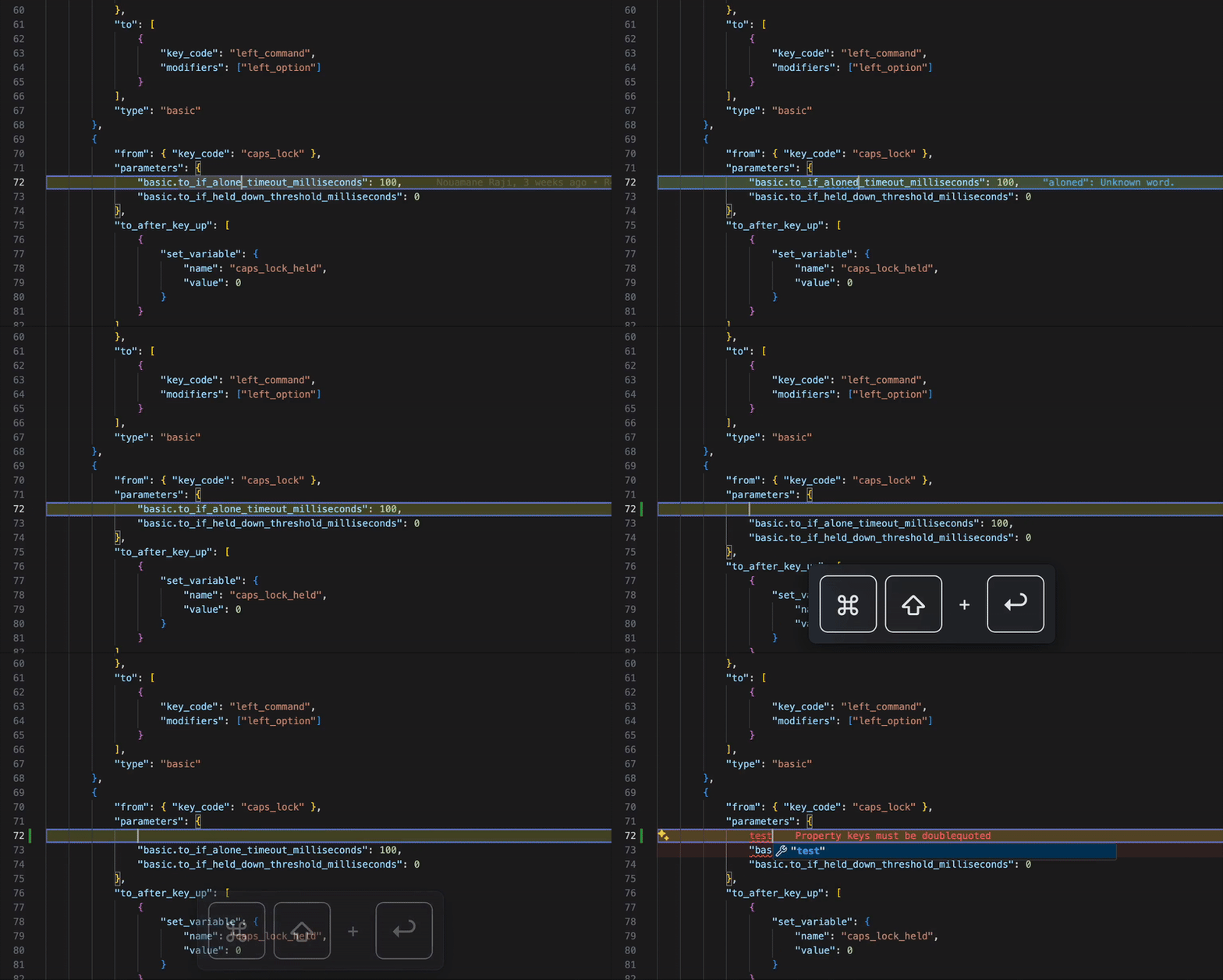
- Cmd + Shift + Enter: Like Cmd + Enter, but this time adds a new line before the current one and places your cursor there
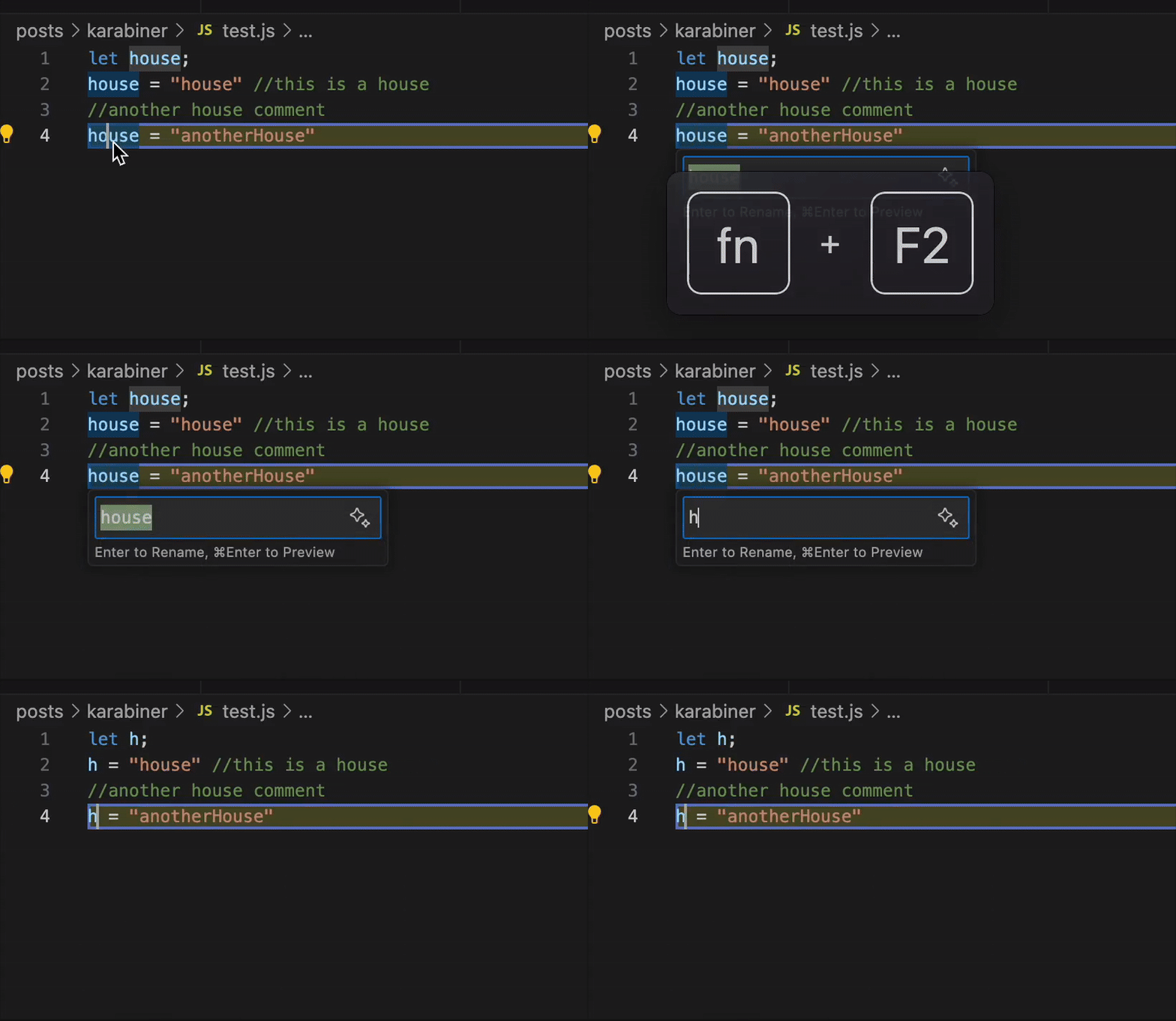
- F2: Rename a variable; makes it easy to rename a variable without affecting other strings
Conclusion
Honestly, I don’t see any conclusion to what I presented.
Feel free to give each plugin a shot. Again, what I presented is not tied to any specific language. Change the keybindings to your convenience. If this article helped you, make sure to check out the other articles; they’ll definitely do as well.