
Simple Introduction to Aerospace Tiling Window Manager
Another way to manage your windows
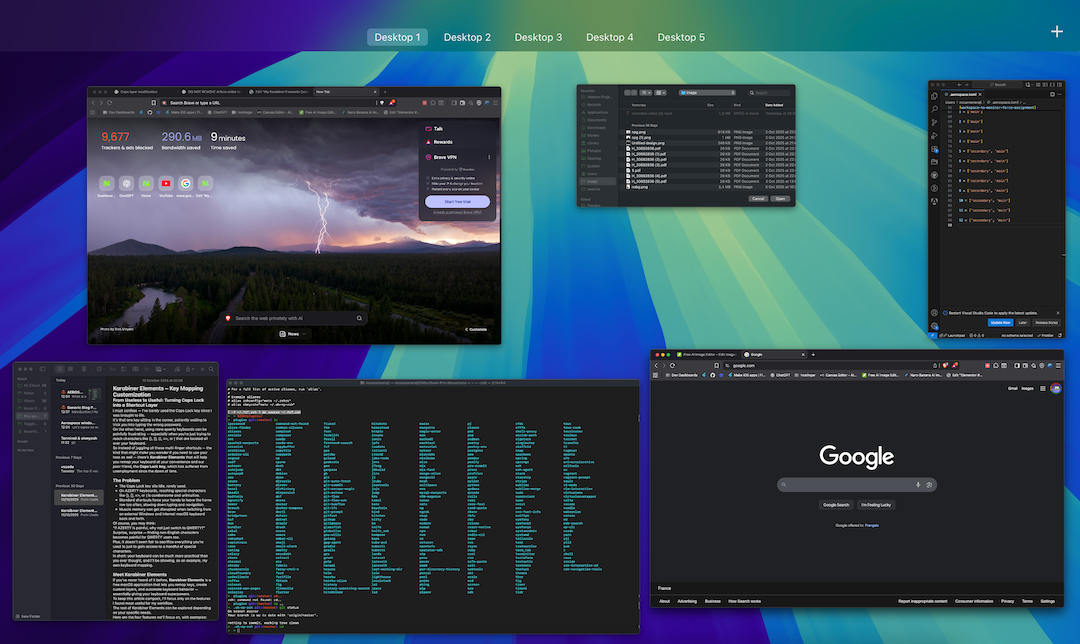
What Is a Window Manager?
A window manager is software that controls how windows appear and behave on your screen. It decides how apps open, how they are resized, and how you navigate between them. macOS comes with Mission Control, which is intuitive and relies mostly on mouse gestures.
What Is Aerospace Tiling Window Manager?
Aerospace is a lightweight, open-source tiling window manager for macOS that lets you control how windows are arranged, focused, and moved, all from your keyboard.
Why using Aerospace?
If you use just a few apps, no multi monitors you’ll be doing fine using macOS window manager, plus macOS already allows you to:
- Jump between desktops (workspaces) using shortcuts.
- Move apps between desktops manually.
How to Install Karabiner-Elements?
brew install --cask nikitabobko/tap/aerospace
if you face any issue head over to the Aerospace Github and follow the installation instructions.
My Current Mapping Setup
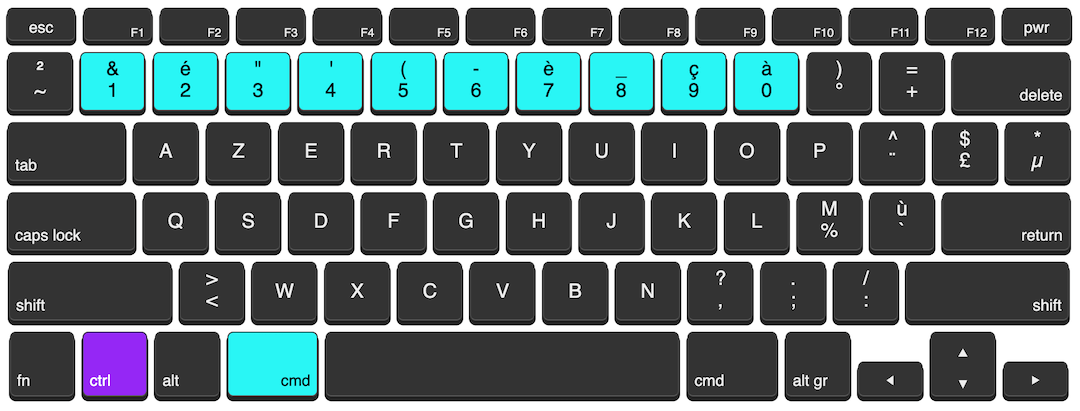
Simple is good. this is how I use Aerospace Window Tiling Manager:
- I have 10 workspaces (from 1 to 0)
- 1 to 4 are workspaces dedicated to my main display
- 5 to 0 are for my second monitor and if no monitor is plugged they become linked to my main display
- cmd + number : to switch to a workspace, you can switch from 1 to 4 independently from 5 to 0 in case of two monitors setup
- ctrl + number : it sends your window to a workspace and goes to it at the same time offering you a smooth experience
How to import my config?
Before using my config, make sure that you are not enabling macOS shortcuts Ctrl + Number or Cmd + Number. if so disable it by going to Settings -> Keyboard -> Keyboard shortcuts.
Copy the content of aerospace.toml into ~/.aerospace.toml (you can find it by clicking on Aerospace Icon on the top bar and chose « open config in vscode ») and Reload
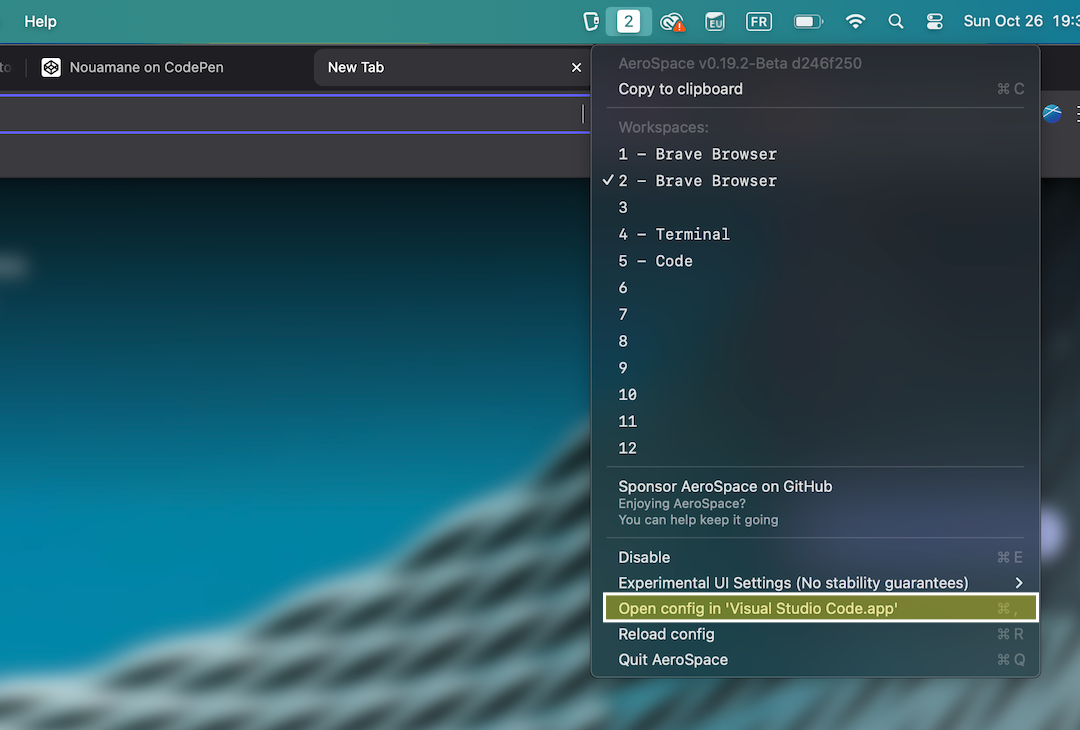
You are all set!
To summarize everything here’s the whole configuration
Cmd + [number]: switch between workspaces
Ctrl + [number]: move a window to a workspace and follow it
Cmd + Ctrl + T: change layout
- Ctrl + Cmd + F: fullscreen the active window
- Cmd + Ctrl + HJKL: move windows (Vim-style)
Alt + HJKL: move focus around (Vim-style) (I use mouse though)
Ctrl + Cmd + R: enter resize mode (I use mouse though)
Conclusion
My goal isn’t to flood you with commands, but to get you on track as fast as possible. From here, it’s up to you to decide how to organize your apps across workspaces. For example: VS Code on workspace 5, your browser on workspace 1, and Postman on workspace 7. Simple, clean, and efficient.